

Technology
TeliCamSDK
TeliViewer | SnapShot Function
Introduction
This document explains how to efficiently save still images captured by a camera using the Snapshot feature of TeliViewer.
Before
Current Challenges
- - Need to store a large number of still images for AI model training
- - Want to save still images without dropping camera frames
- - Want to automatically save still images at regular intervals
- - Need to save still images at speeds beyond manual operation
After
How This Feature Solves the Challenges
By using the Snapshot feature in TeliViewer, you can efficiently save a large number of still images.
It enables continuous image saving without frame drops, as well as automatic saving at fixed intervals.
This makes it ideal for applications such as data collection for AI model development and monitoring systems.

Functions
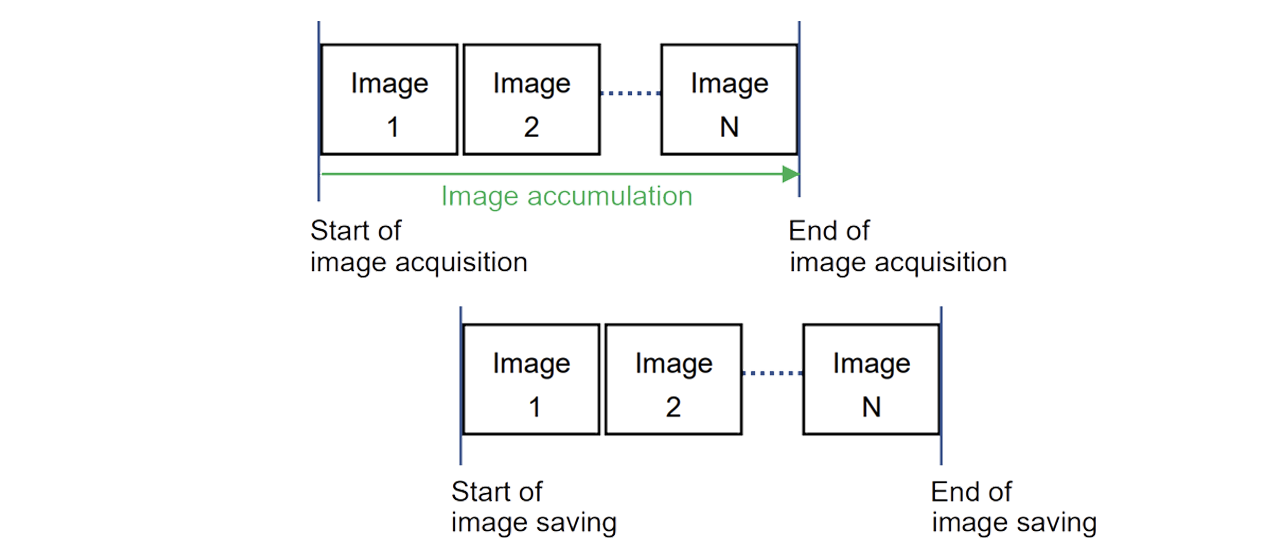
Frame Count Mode
This function allows you to continuously save a specified number of still images.
- 1. Select the save destination and file format
- 2. Configure the image format and quality
- 3. Select the shooting mode "Frame Count Mode" and set the number of images to capture
- 4. Start capture
Frame Count Repeat Mode
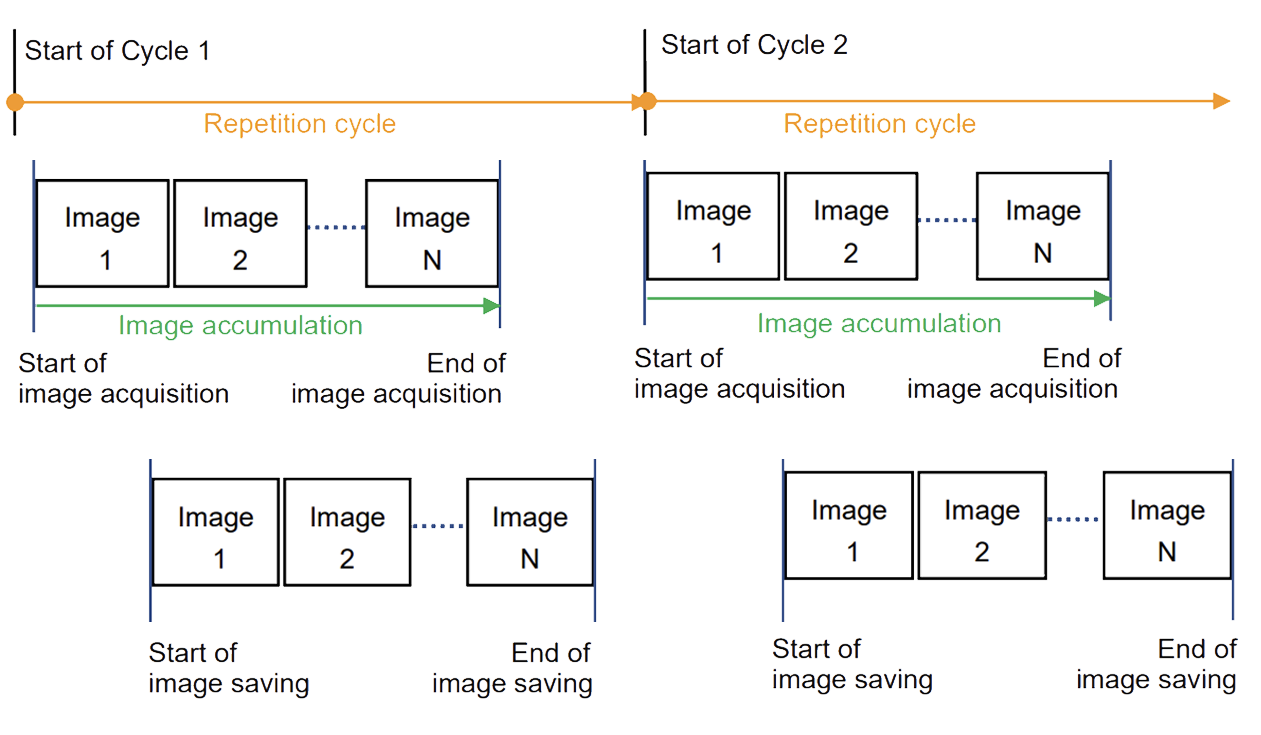
This function automatically repeats saving the specified number of images configured in Frame Count Mode.
- 1. Select the save destination and file format
- 2. Configure the image format and quality
- 3. Select the shooting mode "Frame Count Repeat Mode" and set the number of images, capture interval, and maximum repeat duration
- 4. Start capture
Settings
Configuration Overview
TeliViewer Screen

How to Configure
Frame Count Mode
<Snapshot : Frame Count Mode Overview Video>
Frame Count Repeat Mode
<Snapshot : Frame Count Repeat Mode Overview Video>